CrossDesk remote desktop features
From a single remote computer to a wall of connected desktops, keep your devices within reach.
Cross-platform remote desktop
Start remote sessions between Windows, macOS, and Linux computers. The main window brings your device ID, connection controls, and recent devices together for quick reconnection.
Remote sessions support keyboard and mouse input, audio, text clipboard sharing, and file transfer. Availability depends on the client platform and version.
Download desktop clients →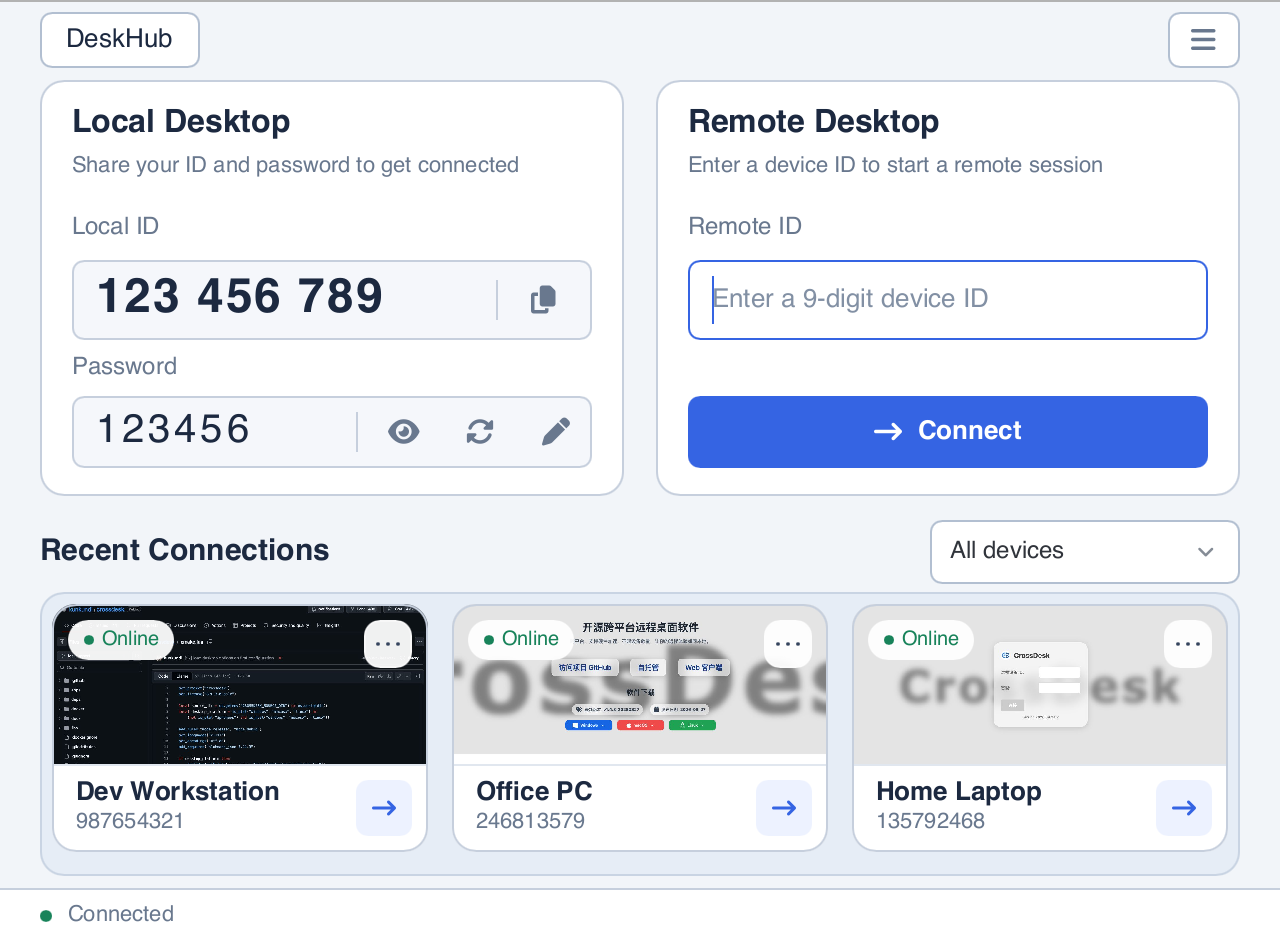
DeskHub: manage multiple devices
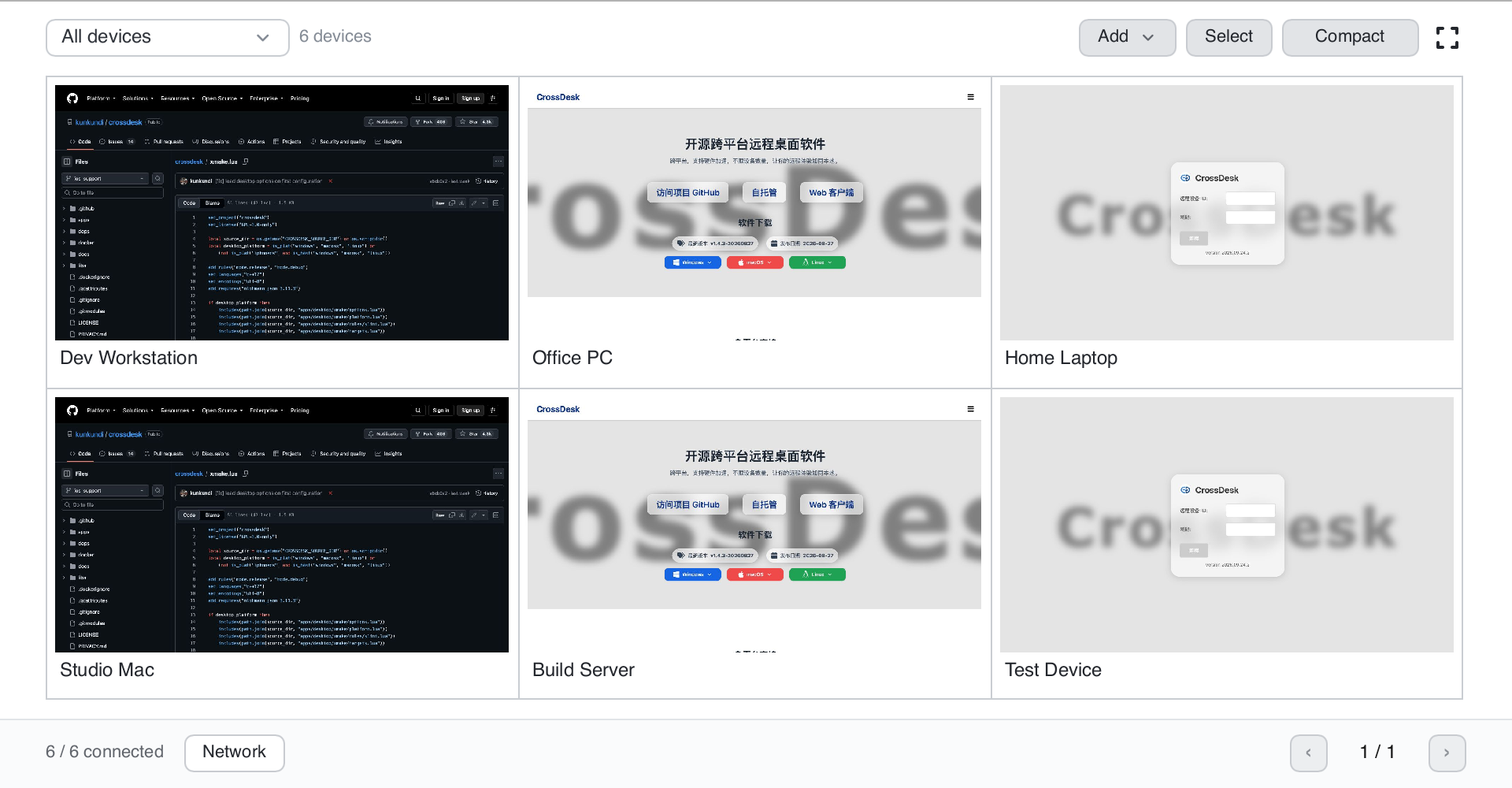
Preview multiple remote devices in one window, organize them into groups, expand the desktop you want to control, and connect, disconnect, or distribute files in batches.
DeskHub supports group control and streaming settings. Group control sends identical coordinates and keys to connected devices, so results can differ across screen sizes.
Resolution, frame rate, and bandwidth controls depend on the remote device’s capabilities.
Browser and mobile access
Enter a device ID and password in the Web client to start a connection. Native iOS and Android clients also let you control a computer from a phone or tablet.
The remote computer must have CrossDesk installed and running. Mobile and browser clients may support a different set of features from desktop clients.
Open web client →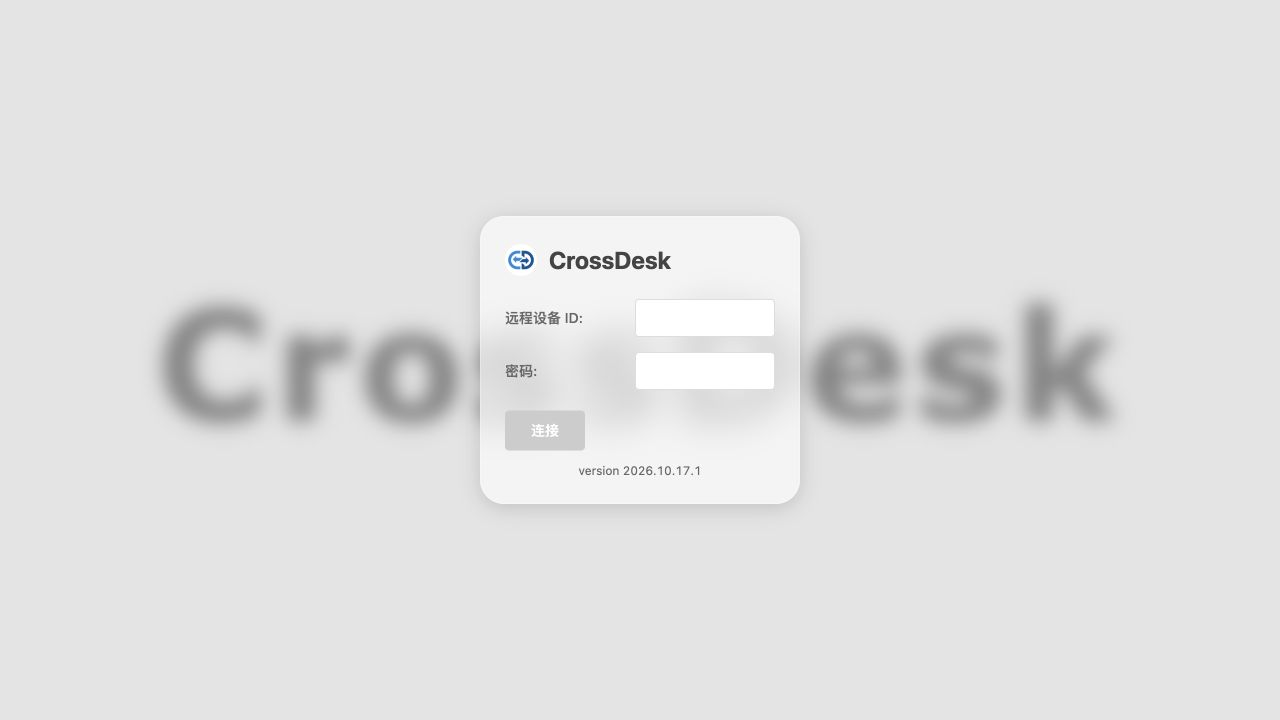
Hardware acceleration and connectivity
Built on MiniRTC, CrossDesk supports H.264 / AV1 video and hardware codecs. NVIDIA, VideoToolbox, and other acceleration options depend on hardware, operating system, and build configuration.
Connections attempt P2P access first and can use a TURN relay when a direct connection is unavailable. You can also deploy your own signaling and relay services.
Read the self-hosting guide →